If you have been learning PLC programming, sooner or later you will need to build the operator's window into your machine — the touchscreen or monitor that shows what the process is doing and lets an operator make decisions without writing a line of ladder logic. That is an HMI.
An HMI (Human Machine Interface) is the graphical interface an operator uses to monitor and control an automated process. It displays process values, accepts operator inputs (setpoints, start/stop commands), and shows alarms when things go wrong. The PLC runs the control logic; the HMI is the face of that logic to the person standing in front of it.
This tutorial is vendor-neutral. The concepts — screens, tags, animations, alarms, navigation — apply to every major HMI platform: FactoryTalk View, Siemens WinCC, Weintek, Ignition, and any other you will encounter. Vendor-specific syntax differs. The design decisions do not.
HMI vs PLC: Two Different Jobs
Before anything else, get this distinction clear: the PLC runs the logic; the HMI shows it.
The PLC is the brain. It reads inputs, runs your ladder or structured text, and drives outputs. It does this whether or not there is a screen nearby. A PLC that has lost communication with its HMI will keep running normally — it just will not have an operator interface.
The HMI is the window. It reads values from the PLC's memory — tags — and displays them on screen. When an operator presses a button on the HMI, the HMI writes a value to a PLC tag, and the PLC logic responds to that tag change. The HMI itself does not run the logic; it just reads and writes to the PLC.
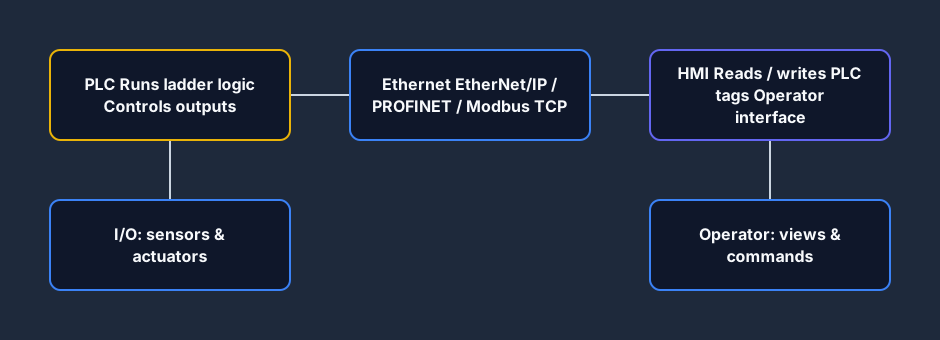
This is why a PLC fault and an HMI fault look completely different. If the PLC faults, the machine stops (or fails safe). If the HMI faults, the machine may keep running fine — you just lose visibility. That is a big deal for safety (you cannot see a dangerous condition), but it is worth knowing the two systems are independent.
The connection between them is almost always Ethernet in modern systems, using the PLC's native protocol (EtherNet/IP for Allen-Bradley, PROFINET for Siemens) or a common protocol like Modbus TCP or OPC UA. Older systems used serial RS-232/RS-485.
Screens and Navigation
An HMI project is built from screens — sometimes called pages or displays. You design each screen in the HMI software, then deploy the project to the HMI panel or PC. The operator navigates between screens using buttons you define.
Every project needs at least:
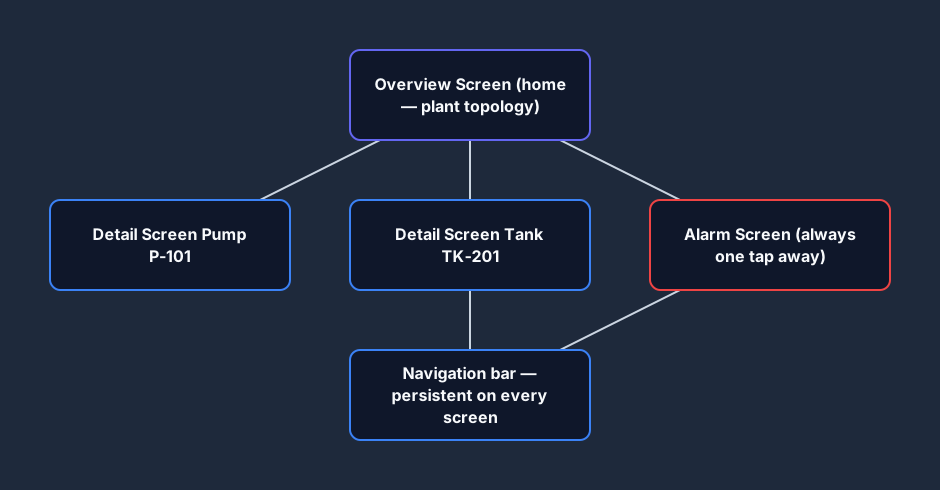
- Overview screen — top-level view of the whole process. Think of this as the operator's home page.
- Faceplates or detail screens — one per major loop or area. Clicking a pump on the overview jumps to the pump's detail screen with its setpoints, run hours, and alarms.
- Alarm screen — dedicated page listing active and historical alarms. Operators should be able to reach this from any screen with one button press.
- Navigation bar — consistent header or sidebar with buttons to reach the main screens. If an operator has to hunt for how to get to the alarm page during an incident, you have designed it wrong.
A screen looks complex until you realize it is built from a small set of objects. Almost every HMI screen is a combination of these:
- Static text and graphics — labels, equipment outlines, pipe drawings. These never change.
- Dynamic elements — numeric displays, status lamps, tank fill indicators. These change based on tag values.
- Input objects — pushbuttons, numeric entry fields, dropdown selectors. These write to PLC tags.
Tag Binding — How the Screen Comes Alive
A static screen is just a picture. Tag binding is what makes it live.
Every dynamic element on an HMI screen is bound to a tag — a named address in the PLC memory. When you create a numeric display showing pump discharge pressure, you bind it to the tag PT101_EU (or whatever your PLC program calls it). The HMI polls the PLC for that tag's value, typically every 100–500 milliseconds, and updates the display.
The binding always works the same way, regardless of vendor:
- Drop a numeric display object onto the screen.
- Open its properties.
- In the "tag" or "connection" field, browse to or type the PLC tag name.
- Set the display format (decimal places, units, scaling if needed at the HMI level).
- Done — the display will show the live value from the PLC.
Tag binding for input objects works the same way in reverse. A write binding: when the operator enters a value and confirms it, the HMI writes that value to the bound PLC tag.
Tag Types You Will Use Most
Read tags (PLC → HMI):
- Analog values: temperatures, pressures, levels, flow rates. Displayed as numeric values or as animated fill levels.
- Discrete status: motor running, valve open, fault active. Displayed as lamps (green/red) or as animated equipment states.
Write tags (HMI → PLC):
- Setpoints: the operator's desired temperature, pressure, or level target.
- Commands: start, stop, reset, mode select (auto/manual).
- Acknowledgements: alarm ACK, fault reset.
A common beginner mistake is binding an HMI start button directly to the motor output tag. Never do this. The HMI button should write to a command bit in the PLC — for example HMI_Motor_Start_Cmd — and your PLC ladder logic reads that command bit and decides whether to actually start the motor (checking permissives, interlocks, safety conditions). The PLC stays in charge of logic; the HMI only sends commands.
Try this right now: the motor-start-stop scenario shows a machine view where a start and stop button are wired to the PLC logic. Watch how the button writes a bit, and the PLC logic determines the output — the same separation of concerns as a real HMI.
Pushbuttons, Lamps, and Numeric Entry
These three object types make up probably 80% of what you will configure on most screens.
Pushbuttons
A pushbutton writes to a PLC tag when pressed. The most important setting after the tag binding is the action type:
- Momentary — writes a 1 while held, back to 0 on release. Use for start commands that the PLC seals in.
- Toggle — writes 0 or 1 alternately on each press. Use carefully — operator can lose track of the current state.
- Set on press / reset on release — same as momentary. Some vendors call it this.
- Write value — writes a specific numeric value to a tag. Use for mode changes (write 1 for Auto, 2 for Manual, 3 for Maintenance).
Always add a label to every pushbutton showing its function and, if it is a write-value button, what value it writes. "AUTO" is clear. "Mode 1" is not.
Status Lamps
A lamp or indicator changes appearance (color, text, image) based on a tag value. The most common is a simple two-state lamp: green when the tag is 1 (motor running), gray or red when the tag is 0 (motor stopped or faulted).
Do not make up color meanings. The ISA-101 standard (discussed in the next section) defines color conventions. Deviating from them on a multi-panel project creates confusion that costs incidents.
Numeric Entry and Display
Numeric displays show a tag value as a number. Numeric entry fields let operators type a value and confirm it.
For every numeric entry field, set:
- Minimum and maximum allowed values (clamp at the HMI before the value reaches the PLC).
- Number of decimal places.
- Engineering units label (°C, kPa, L/min, % — on screen, not just in documentation).
- A confirm step (press Enter or tap a confirm button) to avoid accidental setpoint changes.
Alarm Design — The Most Important Screen Nobody Reads Until It's Too Late
Alarms on an HMI exist for one reason: to tell an operator that the process needs their attention. That is it. Every alarm that does not require operator action is a nuisance alarm, and nuisance alarms are how operators learn to ignore the alarm system. A plant with 300 active alarms in normal operation is a plant where nobody responds to alarms anymore.
Good alarm design follows three rules:
- Every alarm should require an operator action. If there is nothing the operator can do about it, it is not an alarm — it is a log entry.
- Every alarm should be unique. If PT-101 high and FIC-201 deviation both trigger on the same failure, that is two alarms for one event. Rationalise them to one.
- Alarms should tell the operator what to do, not just what happened. "P-101 discharge pressure high — check control valve PCV-101 position" is more useful than "PT-101 HIGH."
ISA-18.2 Alarm Priority
The ISA-18.2 standard defines four alarm priorities that most modern HMI platforms support directly:
| Priority | Meaning | Operator response time |
|---|---|---|
| 1 — Critical | Immediate risk to safety, equipment, or environment | Immediate |
| 2 — High | Significant process deviation, will escalate | Within minutes |
| 3 — Medium | Process deviation, not immediately critical | Within the hour |
| 4 — Low | Advisory, informational | When convenient |
Set priorities consistently and your operators will know that when a Priority 1 alarm fires, they stop everything. When a Priority 4 fires, they can finish what they are doing first.
ISA-101 Color Discipline — Why Industrial HMIs Look Gray
If you have seen a professional industrial HMI, you may have noticed the screens are mostly gray. This is not laziness or lack of creativity — it is intentional and it follows ISA-101.
The principle is simple: color means something is abnormal. In a gray, monochromatic screen, a red alarm stands out immediately. An operator in a control room can see it across the room. On a screen where every pipe, valve, and readout is a different color, a red alarm blends into the noise.
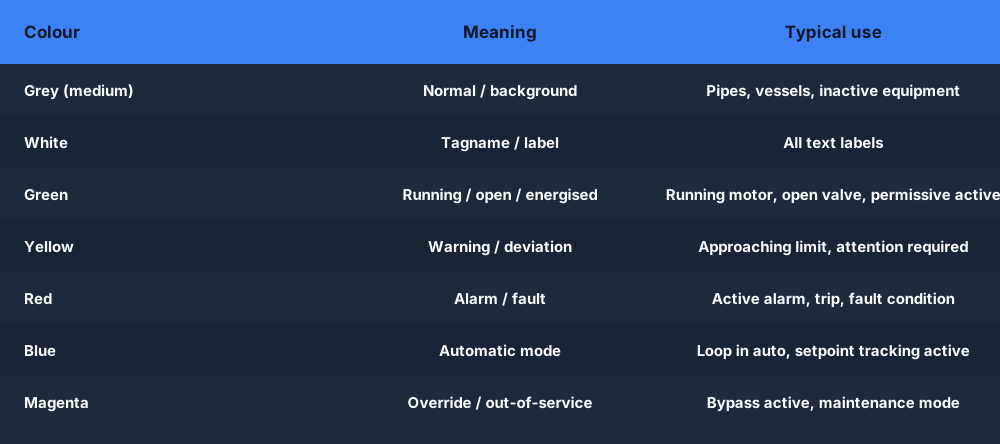
ISA-101 color conventions:
| Color | Meaning |
|---|---|
| Gray (medium) | Normal, inactive, background |
| White | Tagname, label text |
| Yellow | Warning — deviation, attention required |
| Red | Alarm — abnormal condition, action required |
| Green | Running, open, energised |
| Blue | In automatic mode |
| Magenta / Purple | Override active, out-of-service |
Start from a gray background. Use green to show running equipment. Use red only for active alarms and faults. After a week of working on a well-designed gray HMI, a screen full of multi-coloured objects looks like a video game — and in an alarm situation, it becomes a liability.
Vendor Landscape: One Honest Paragraph
The concepts above apply everywhere. The software you use to configure them differs by platform. FactoryTalk View ME/SE is the Allen-Bradley ecosystem product; it integrates tightly with Studio 5000 and ControlLogix hardware and is dominant in North American manufacturing. Siemens WinCC (available as WinCC Runtime, WinCC Unified, and WinCC Flexible for older panels) integrates with TIA Portal and S7 PLCs and is common wherever Siemens hardware runs. Weintek makes popular budget-to-mid-range touchscreens and uses EasyBuilder Pro as its configuration software — widely used in machinery OEMs, especially in Asia and emerging markets. Ignition (Inductive Automation) is software-based SCADA/HMI on a subscription model, gaining fast in applications where browser-based access and historian integration matter. All of them implement the same concepts: screens, tags, alarms, navigation.
The fastest way to learn is to practice on real control logic, then map it to an interface. The batch-mixer scenario shows a multi-step process with status outputs that would map directly to a machine overview screen. The level-alarm-stack scenario has the alarm priority logic you would design the alarm screen to display.
Overview, Area, Detail, and Faceplate Hierarchy
An operator should not have to remember which of twenty screens contains the reason a line stopped. Build a hierarchy from overview to area to detail, then use faceplates for repeated equipment. The overview answers “where is the abnormal condition?” An area screen answers “which equipment path owns it?” A detail screen or faceplate answers “what was requested, what blocked it, and what should the operator do next?”

The overview should show major process flow, equipment state, production mode, important inventory, and abnormal conditions without becoming a miniature P&ID. It is a decision surface, not an attempt to display every tag. Use consistent equipment locations so the operator’s spatial memory still works during a fault. Put navigation in a persistent region; alarm summary and home should remain reachable without backing through a chain of pop-ups.
Area and detail screens add information in layers. A pump detail can show run request, permissives, final command, running feedback, speed, current, active interlock, and first fault. A faceplate should use the same layout for every pump so operators learn one interaction. Device-specific information can appear in an extended tab, but the normal command/status relationship should not move.
| Display level | Primary question | Include | Avoid |
|---|---|---|---|
| Overview | Where does attention belong? | Process flow, key states, major alarms, production mode | Every raw tag and decorative equipment detail |
| Area | Which equipment or process path is responsible? | Local flow, sequence state, constrained values, alarm context | Unrelated site data |
| Detail | Why is this item not doing what was requested? | Request, permissives, command, feedback, timeout, trend | Hidden writes and unexplained maintenance values |
| Faceplate | What can I observe or command for this device? | Consistent state, mode, setpoint, command confirmation | Direct physical-output writes that bypass PLC logic |
Test navigation as an operator task: start from the overview, locate a fault, open the affected detail, identify the blocked reason, acknowledge the correct alarm, and return home. Count taps and failed turns. A beautiful hierarchy that requires twelve actions under pressure is not usable.
Separate Status from Control and Make Writes Deliberate
An HMI lamp displays a fact; a button submits a request. Do not blur those roles by making every colored object clickable or by using the same label for command and feedback. “Motor Start Request,” “Motor Run Command,” and “Motor Running Feedback” are three different facts. Showing them separately turns a failed start into a diagnosable chain.

Write HMI commands to dedicated request tags. The PLC decides whether the request is allowed, applies mode and interlock rules, drives the final command, and reports the reason when it is blocked. This keeps control authority in one place and prevents a screen object from bypassing sequence or protection logic. Use momentary, maintained, setpoint, and mode commands only where the program has a matching lifecycle.
High-consequence writes need confirmation and context. A confirmation dialog should name the equipment, current value, proposed value, engineering unit, and consequence—not ask only “Are you sure?” Enforce type and range at both interface and controller boundaries. If the PLC rejects the value, show the rejection reason and retain the prior accepted setpoint rather than displaying the attempted value as if it were active.
Make control availability visible. Disabled buttons need an accessible reason such as “Start unavailable: guard open” or “Mode change blocked: sequence active.” Hiding a button can make an operator think a feature does not exist. Enabling it and silently ignoring the write creates repeated taps and distrust. The interface should reflect the same permissions and operating state the PLC enforces.
Trends, Units, Ranges, and Data Quality
A numeric value without unit, expected range, timestamp, or quality can be more misleading than no value. Use engineering units on displays and setpoints. Show enough precision for the process and instrument; extra decimals do not create accuracy. For critical values, make bad or stale quality visually distinct from a real zero.

Design a trend around a question. For a motor that trips intermittently, plot start request, final command, running feedback, current, and the first alarm. For a pressure loop, plot setpoint, process value, controller output, mode, and sensor quality. Align pens on one time basis and label each unit. A trend with fifteen unrelated tags and three incompatible scales may look sophisticated while hiding the causal order.
Choose sampling from the event the operator or technician must distinguish. A ten-second sample can show a slow tank level and miss a half-second pressure spike. Faster is not automatically better: polling load, network capacity, storage, compression, and display resolution still matter. When a live HMI trend is not a historian, say so. Retention, source timestamps, quality, audit, backup, and historical queries are separate capabilities.
Setpoint presentation needs current, requested, and accepted values where they can differ. Show allowable range and unit beside entry, apply role permissions, and record who changed an important production value when the system requires it. If a value is clamped by PLC logic, report the accepted value and reason rather than leaving the operator with a screen number the controller is not using.
Alarm Display: State, Priority, and Operator Response
An alarm banner should distinguish new unacknowledged, acknowledged active, returned-to-normal unacknowledged, and shelved or suppressed states where the application supports them. Color alone is not enough; use text, icons, grouping, sorting, timestamps, and accessible contrast. Keep the first-out or initiating event available so a cascade does not make the last symptom look like the cause.
Alarm rows should answer four questions quickly: what is wrong, where is it, what consequence matters, and what response is expected. “TK-201 level high-high—stop upstream transfer and verify inlet valve XV-201 closed” carries more operational value than “HH_ALM_203.” Exact wording and response belong in an alarm rationalization record shared by process, operations, controls, and safety stakeholders.
Link summary to detail. Selecting an alarm should navigate to the affected area or faceplate with relevant trend context, not just expose an address. After acknowledgement, preserve whether the condition remains active and whether it returned to normal. Acknowledgement means the alarm was seen; it is not a PLC reset, repair, or permission to restart.
HMI Design Review and Test Checklist
Review screens with representative tasks and fault states, not only screenshots of normal production. A design can meet a style guide and still fail when values become long, communication drops, ten alarms arrive, a user has view-only permission, or the panel is operated with gloves.

- Hierarchy: Can a new operator move from overview to the correct detail and back without guessing?
- Status versus control: Are request, command, feedback, mode, and blocked reason distinguishable?
- Abnormal emphasis: Does color remain reserved and consistent enough that alarms stand out?
- Values: Does every critical value show unit, useful precision, range, and bad/stale quality?
- Writes: Are setpoint, mode, and equipment commands range-checked, permission-aware, and confirmed where justified?
- Alarms: Do priority, state, timestamp, consequence, response, and navigation remain clear during a flood?
- Accessibility: Are contrast, text size, focus order, touch targets, keyboard access, and non-color cues usable?
- Failure and recovery: What appears during PLC loss, stale data, rejected writes, restart, and partial navigation failure?
Run at least one normal operator journey and one abnormal journey on the actual target resolution. Test wide and narrow labels, maximum numeric values, localization if applicable, dark/light environment, and the intended input method. Capture the result and link defects to the design rule they violated. The browser HMI simulator provides editable widgets, alarms, live tags, and trend exercises for practicing these decisions; target-panel performance, drivers, security, and industrial validation remain separate.
Common Mistakes in HMI Programming
No navigation hierarchy. Fifteen screens of equal importance with no clear home page means operators get lost under pressure.
Direct output binding from HMI buttons. The HMI writes to a command tag; the PLC logic decides the outcome. Never bypass the PLC logic.
Nuisance alarm flood. Every low-oil and high-temperature condition appearing simultaneously at startup because the engineer set the alarm limits too tight. Commission the alarms live — adjust limits until only real abnormal conditions trigger.
Inconsistent units. The PLC scales temperature in °C; the HMI display is labeled °F. It happens more often than you would think. Agree on units before you build any screen.
No testing protocol. Simulating every alarm, every mode, every screen transition before go-live. An HMI that works in demo mode but drops communication when the PLC has 500 tags polled simultaneously is a surprise nobody wants on day one of production.
Frequently Asked Questions
Q: Do I need to learn vendor-specific HMI software to be employable?
A: You will eventually work in a specific platform — most jobs are either FactoryTalk or WinCC depending on geography. But the conceptual skills in this guide (tag binding, alarm design, navigation structure, ISA-101 color discipline) transfer across all of them. Someone who understands HMI design principles can learn any vendor tool in a few days. Someone who only knows one vendor's workflow struggles when the project uses a different platform.
Q: What is the difference between an HMI and SCADA?
A: An HMI is typically a single-panel or single-machine interface. SCADA (Supervisory Control and Data Acquisition) is a system that connects multiple PLCs and HMIs across a site or across sites, with centralized monitoring, historisation, reporting, and alarm management. SCADA runs on a server; HMI runs on a panel. The boundary is blurring (Ignition, for example, is both), but the conceptual distinction holds for most industrial applications.
Q: How often should the HMI poll the PLC for tag updates?
A: For process values (temperatures, pressures, levels), 500 ms is fine — processes do not change in microseconds. For discrete status (motor running, alarm active), 200–300 ms is better. Never poll faster than the PLC can respond, and be aware that a very large number of tags polled at high rate can saturate the PLC's communications processor. Group high-rate and low-rate tags into separate update groups if your platform supports it.
Q: Can HMI software run on a PC instead of a dedicated panel?
A: Yes. Most HMI platforms have a "Runtime" that runs on a standard industrial PC or even a regular Windows computer. The hardware panel is convenient because it is ruggedised and touch-enabled, but there is no technical requirement to use one. Ignition runs entirely in a browser, which makes it accessible from any device on the network.
Q: What is an HMI faceplate?
A: A faceplate is a small, reusable screen pop-up that shows the detail for one instrument loop — its current value, setpoint, mode (auto/manual), and alarm status. When an operator clicks a motor symbol or a tank on the overview screen, a faceplate pops up showing the details for that item. Faceplates make large HMI projects manageable because you design the faceplate once and reuse it for every instance of that device type across the site.
Q: What information belongs on an HMI overview screen?
A: Show major process flow, production mode, critical inventory or constraints, equipment states, and abnormal conditions needed to direct attention. Move raw diagnostics and device configuration to area, detail, or faceplate layers.
Q: Should an HMI button write directly to a PLC output?
A: Normally no. The HMI should write a request tag; PLC logic should apply mode, permissives, interlocks, ownership, and safety-related design before deciding the final output command.
Q: How do you show bad or stale HMI data?
A: Preserve data quality separately from the numeric value and show a non-color-only stale/bad indication. Do not let communication loss impersonate a valid zero or leave an old value looking current.
Q: How do you test an HMI before commissioning?
A: Run normal and abnormal operator tasks, rejected writes, permission states, maximum values, alarm floods, communication loss, stale data, restart, navigation recovery, accessibility checks, and the actual target viewport and input method.
Practice the machine logic that an HMI would sit on top of. The batch-mixer scenario is free, runs in your browser, and exercises the multi-state logic that every HMI multi-step sequence is built on.