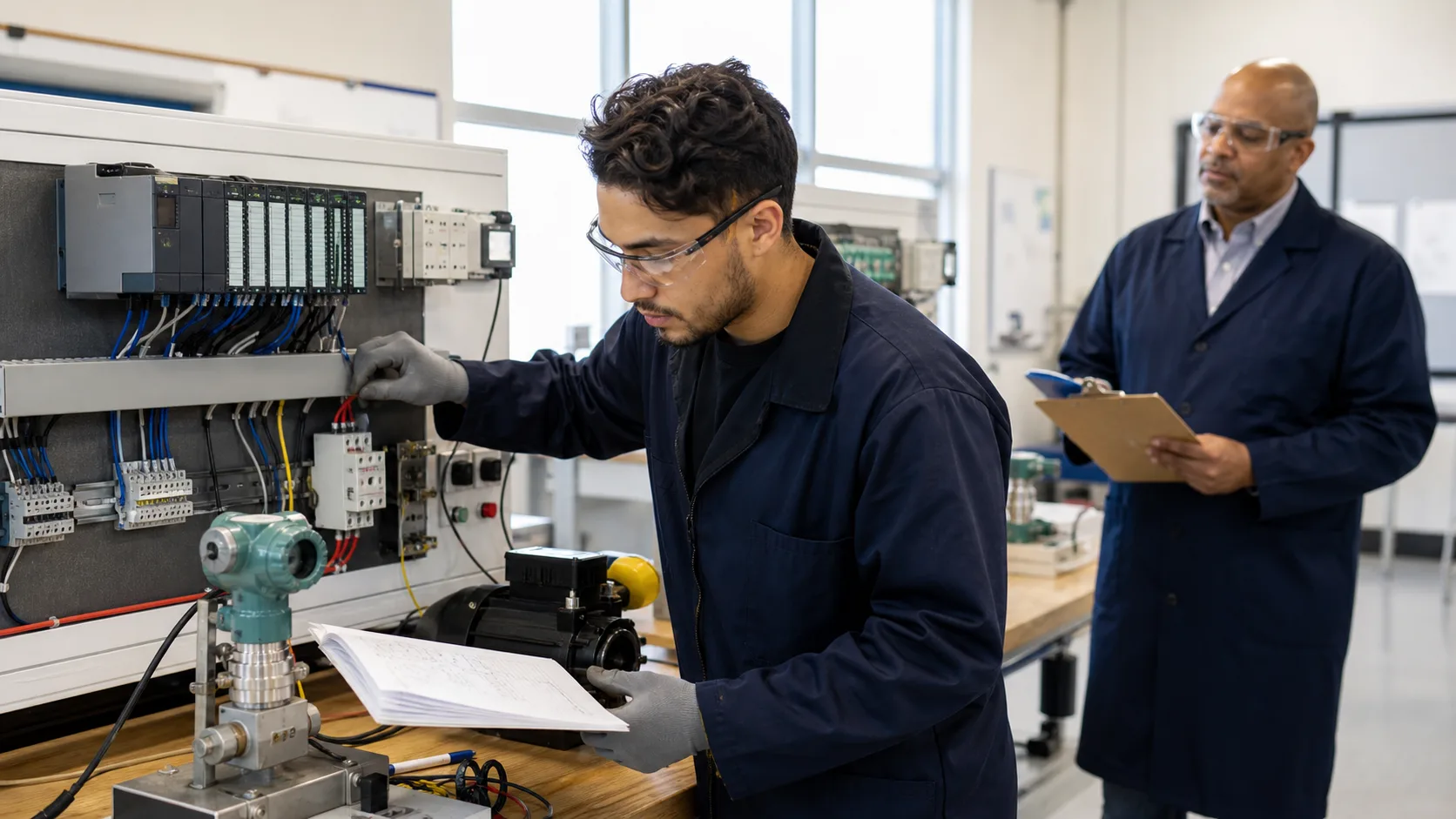
Structured scenarios and curriculum lessons are great for building skills against a defined problem. But sometimes you just want to write some ladder logic, try something out, or see what happens when you combine two features you have not used together before. That is what the sandbox is for.
The sandbox is an ungraded, free-play mode where you start with a blank editor and a configurable machine model. No pass/fail. No timer. Just the simulator and as much time as you want.
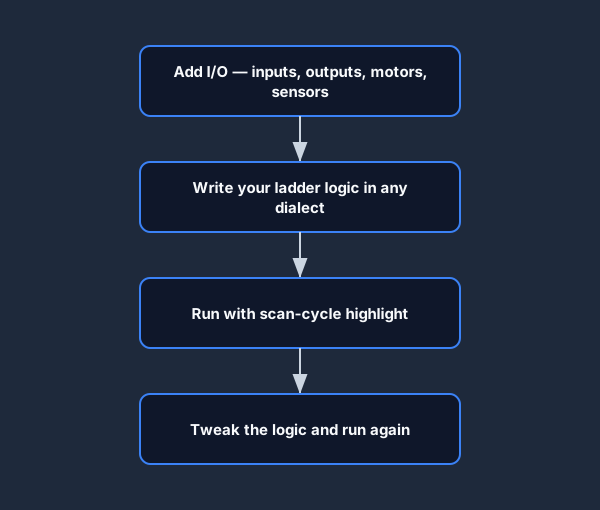
The basic loop is always the same: add some I/O, write logic against it, run it, and tweak.
What the Sandbox Gives You
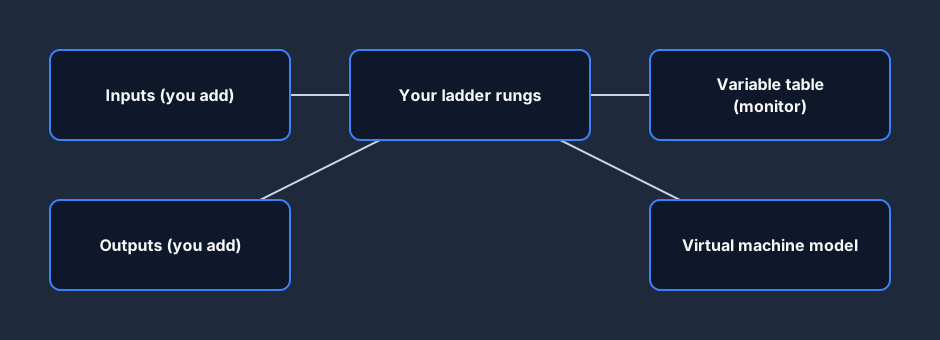
- A blank ladder logic editor (your choice of dialect)
- A configurable virtual machine (add inputs, outputs, motors, sensors)
- Scan-cycle highlight — real-time execution visibility
- Variable table — monitor any bit or register while the program runs
- Cross-reference — find every rung that touches a given tag or device
- Save and load — Pro accounts get 5 sandbox save slots
Sessions are 15 minutes on the Free tier. Pro has unlimited session length.
Unlike a fixed scenario, you define the machine yourself — the editor sits alongside a free-form I/O and variable table that you populate as you go.
Typical Use Cases
1. Try a new instruction before using it in a real scenario
You have read about the FIFO (first-in, first-out) instruction but never used one. Open the sandbox, add a FIFO function block, run it with a simulated input pulse, and watch the values move through the array. Much faster than reading the instruction manual and trying to imagine the execution.
2. Build a portfolio piece
The portfolio feature in the simulator (Pro plan) generates a PDF showing your completed scenarios. But the sandbox is also useful for building demonstration programs that do not have a corresponding graded scenario — a custom traffic-light controller, a multi-motor interlocked system, or a cascaded tank level control system.
To include sandbox work in a portfolio: screenshot or export the program, add a comment block at the top describing what it does and why, and save it. PDF portfolios can reference sandbox programs.
3. Dialect conversion practice
You know the program in IEC, but you need to understand how it would be written in Allen-Bradley for an interview at a Rockwell shop. Write the program in IEC in the sandbox, then switch the dialect selector to Allen-Bradley and compare. The simulator renders the same logic in both dialects simultaneously.
This is more effective than reading a side-by-side table because you have to actively read your own program's logic in the new dialect — which forces you to verify you understand the translation, not just recognize it visually.
For a structured comparison, use the dialect comparison tool. For free experimentation, the sandbox is better.
4. Test an edge case from the curriculum
The curriculum lessons have specific exercises with specific correct answers. If you are curious about a variation — "what if I put the seal-in contact before the stop button instead of after?" — the curriculum is not the place to experiment. Open the sandbox, build the variation, and see what happens. The scan-cycle highlight will show you exactly why the behavior differs.
Getting Started: A Simple Exercise
If you have never used the sandbox before, here is a quick exercise to familiarize yourself with the tools:
- Open the sandbox (a free account is enough)
- Add two digital inputs:
Start_PBandStop_PB - Add one digital output:
Motor_Run - Write a motor start/stop circuit with seal-in
- Enable scan-cycle highlight and run in slow mode
- Toggle the Start_PB input and step through two scans — watch the seal-in take hold
- Toggle Stop_PB and watch the circuit break
The rung you are building looks like this — a Start_PB sealed by the Motor_Run output, broken by a normally-closed Stop_PB:
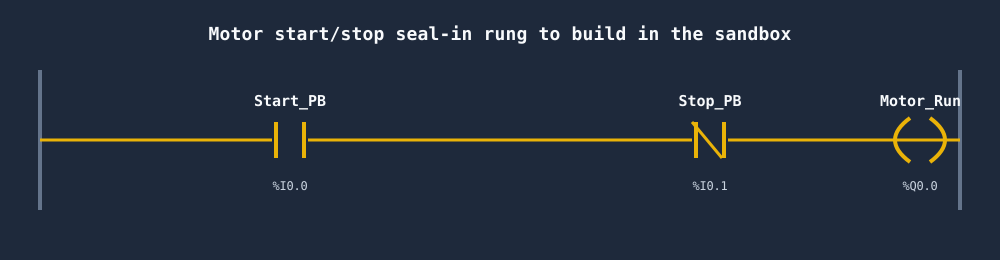
This takes about 5 minutes and demonstrates everything the scan-cycle highlight shows you — the same skills you use to debug real programs.
Saving and Loading Programs
Click Save (or Ctrl+S) to save the current program. Give it a descriptive name — your future self will thank you. Saved programs appear in the My Programs panel and can be reloaded in any future session.
Programs are saved with their dialect setting — so if you saved a program in Mitsubishi dialect, it will load in Mitsubishi mode.
Sandbox vs Scenario
| Sandbox | Scenario | |
|---|---|---|
| Graded? | No | Yes |
| Pass/fail feedback | No | Yes |
| Machine model | You configure | Fixed |
| Session length | 15 min (Free), unlimited (Pro) | Unlimited |
| Portfolio PDF | No (manual export) | Yes (auto-generated) |
| Good for | Experimentation, dialect practice | Structured skill-building |
Use both. The curriculum and scenarios build the foundational skills; the sandbox lets you go beyond the defined exercises.
Open the sandbox and start experimenting. Available on the Free tier (15-minute sessions) and unlimited on Pro. No grading, no timer pressure — just you and the simulator.