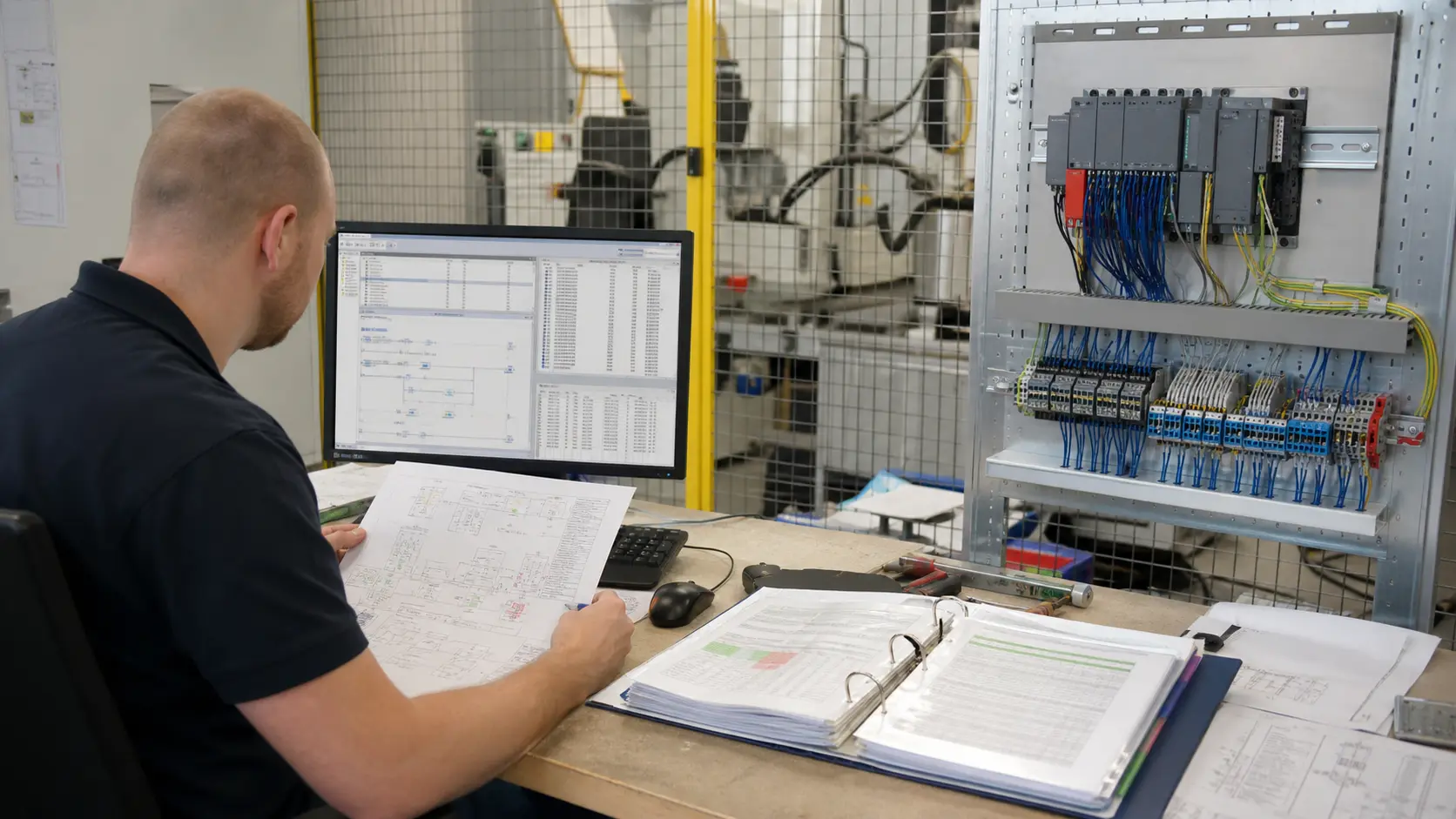
Every serious PLC programming environment includes two tools that are often overlooked by beginners: the variable table (also called the watch table, monitor table, or force table) and the cross-reference. When you encounter a fault and the scan-cycle highlight shows you a FALSE rung, these two tools tell you why it is false.
The Variable Table
The variable table lets you monitor the current state of any variable, bit, or register in the PLC in real time — not just the ones visible in the current ladder view.
What you can monitor:
- Any named tag or device address (X0, M100, Motor_Run, Tank_Level)
- Timer and counter accumulators and done bits
- Data registers (D0, DB10.DBX0.0, etc.)
- Analog input raw counts and scaled values
In the simulator: Open the Variable Table panel from the toolbar. Click + to add a variable. Type the tag name or device address and it appears in the list with its current value, updating each scan.
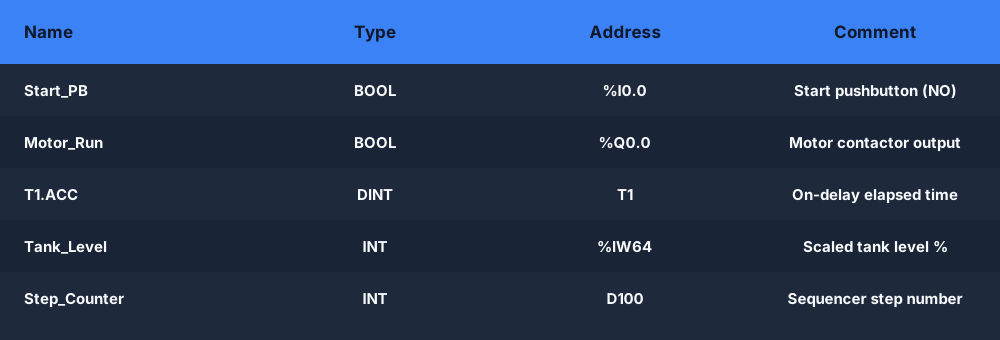
A typical variable table pairs each tag name with its data type, device address, and a comment:
Example: Why isn't Timer T1 expiring?
You expect a motor to start 5 seconds after a start command. It never starts. You check the output coil rung — it is FALSE. The input to that rung is the T1 done bit. You need to know: is T1 running? Has it accumulated any time?
- Open the variable table
- Add
T1.IN(IEC) orT1(Mitsubishi device) to the watch list - Also add
T1.ACC(IEC) or the timer current value - Run the program and press start
If T1.IN stays FALSE, the timer is not even started — the problem is upstream of the timer rung. If T1.IN is TRUE but T1.ACC is stuck at 0, the timer instruction may not be executing (check if the rung leading to the timer is conditional and not being satisfied). If T1.ACC is incrementing but much slower than expected, you have a timer resolution issue — revisit the preset and clock source.
Force mode in the variable table
The variable table also allows forcing — setting a variable to a specific value regardless of what the program computes. Forcing is powerful for isolating faults: you can force an input TRUE to test what the logic would do if the field device was working correctly.
Safety rule: Always check the Force List before disconnecting from a PLC. Never leave forces enabled. An unexpected forced bit can cause unexpected machine movement when the machine is restarted by someone else. The simulator flags all active forces prominently in the interface.
The Cross-Reference
The cross-reference is a tool that shows every rung in the entire program that reads or writes a specific tag or device address.
Why it matters: In a 200-rung program, a single bit might be read by 8 rungs and written by 3. If you want to understand why a bit is TRUE, you need to find every rung that sets it. If you want to understand why a change to one rung caused unexpected behavior elsewhere, you need to find every rung that reads it.
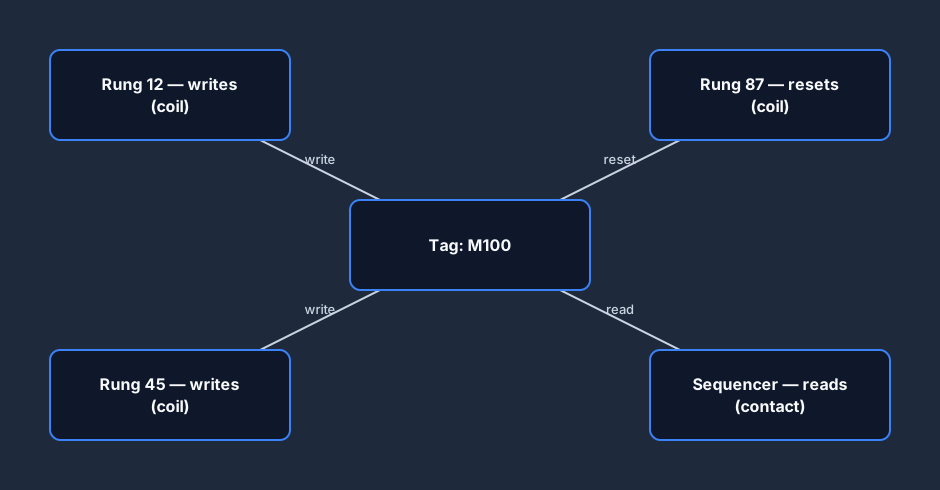
The same tags show up in the rungs themselves — here a Start contact and a timer done bit driving the motor coil, all traceable through the cross-reference:

In the simulator: Open the Cross-Reference panel. Type a tag or device address. The tool shows every rung that references it, with a column indicating whether each reference is a read (contact) or write (coil).
Example: M100 is TRUE, but I don't know where it gets set
You are looking at a sequencer that is stuck on step 4. The sequencer advances based on a comparison: IF Step_Counter = 4 AND M100 THEN advance. But M100 is TRUE when it should not be. Why?
- Open the cross-reference for M100
- Find every rung that writes M100 — there are three
- Rung 12 sets M100 when a sensor is blocked
- Rung 45 sets M100 when a timer expires
- Rung 87 resets M100 on the next cycle start
Using the cross-reference, you find that rung 45 — a timer done bit — is staying TRUE because the timer is never being reset. The timer is latched in the done state. Now you have a clear path to the fix.
That sequence — cross-reference the output, list every rung that writes it, then watch those tags — is the repeatable path for any unexpected output:
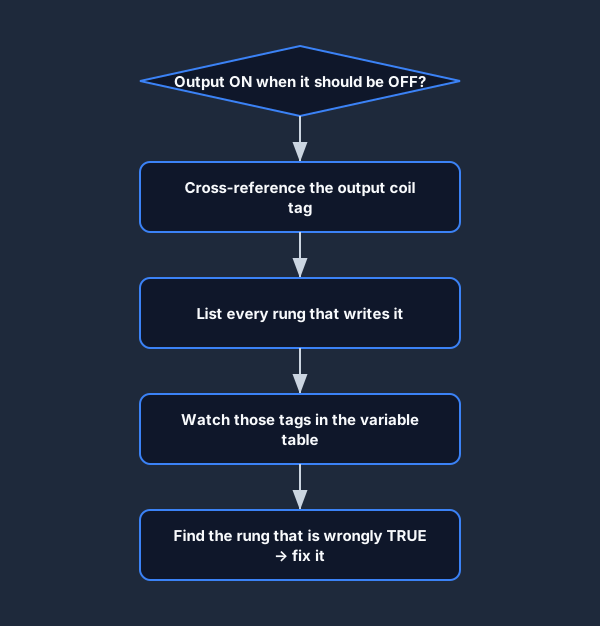
Cross-reference in the fault module
The cross-reference is especially powerful in fault injection exercises. When the simulator injects a fault that changes the behavior of a contact or coil, the cross-reference lets you quickly find every place that variable appears — shortcutting the need to read every rung manually.
The fault injection guide has more on using these tools in fault sessions.
Make the tools work for you: tag naming
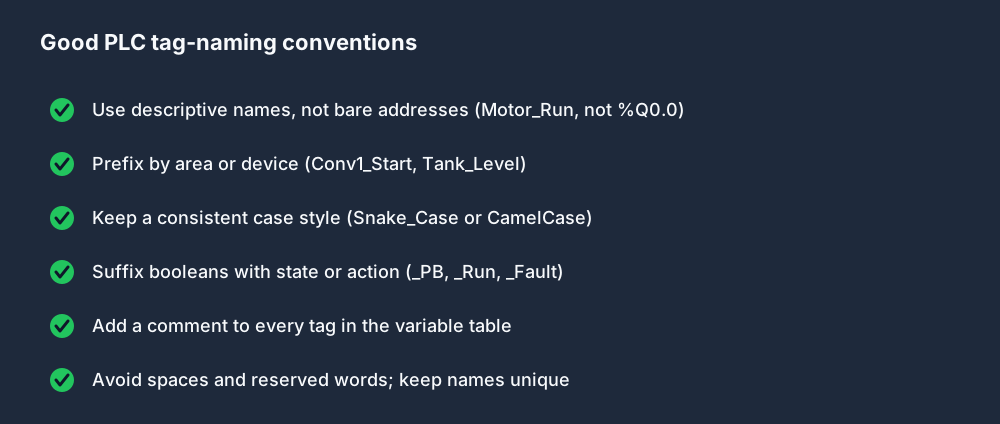
Both tools are only as good as your tag names. A variable table full of bare addresses is far harder to debug than one full of meaningful names:
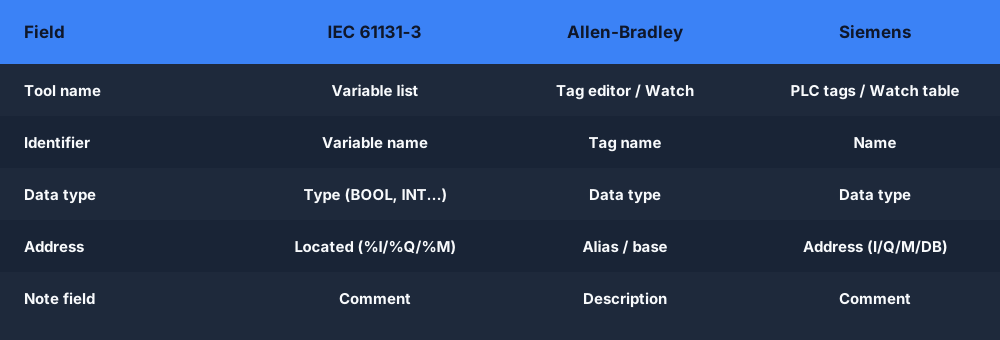
The fields themselves are near-universal, even though each vendor labels them slightly differently — learn the IEC names and the rest map across:
Variable Table + Cross-Reference + Scan Highlight: The Complete Workflow
When a machine misbehaves, these three tools work together:
- Scan-cycle highlight (live mode): Identify the failing output — which output rung is FALSE?
- Scan-cycle highlight (slow mode): Step through the rung input by input — which contact is blocking it?
- Cross-reference: For the blocking contact's variable — find every rung that writes it. Which one should be setting it TRUE, and is it?
- Variable table: Add the key variables from those upstream rungs to the watch list and monitor them for a few scans. Confirm which variable is not changing as expected.
- Force mode (if needed): Force the suspected variable to the expected state and observe if the fault clears. If it does, you have confirmed the root cause.
This is the diagnostic workflow every field service engineer uses on connected hardware — with better tools (a laptop, a full IDE). The simulator lets you practice it risk-free at your own pace.
Try these tools in the simulator. The variable table, cross-reference, and scan-cycle highlight are available in all curriculum exercises and the sandbox. Start with the free lessons.