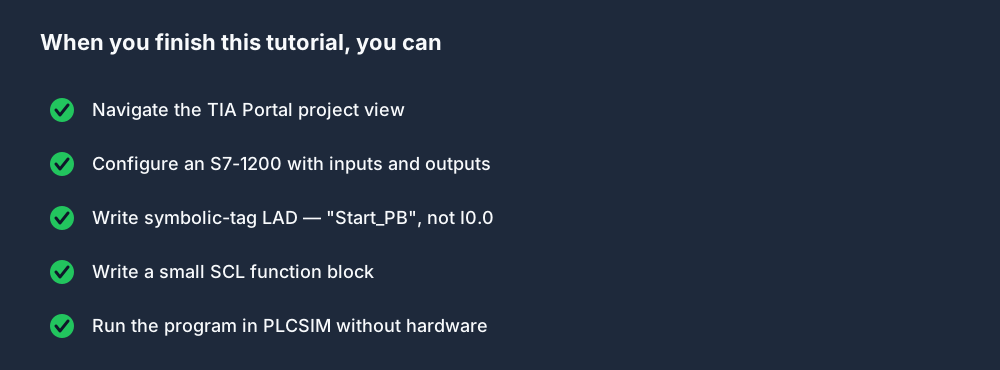
This tutorial takes you from a clean TIA Portal install to a downloaded, running S7-1200 program in one focused sitting — typically 90 minutes for a complete newcomer. You don't need hardware; Siemens' PLCSIM simulator does the job. The TIA Portal V18 trial is 21 days — plenty for this.
If you want the bigger picture after this tutorial, our Siemens PLC training guide lays out a 10-week plan.
Prerequisites
- Windows machine (or Windows VM on macOS / Linux — TIA Portal refuses to run on anything else).
- TIA Portal V18 Basic trial installed. Download from Siemens Industry Online Support (SIOS). 21-day license is fine.
- PLCSIM V18 installed. Siemens bundles it; tick the option during install.
- 90 minutes.
The five steps
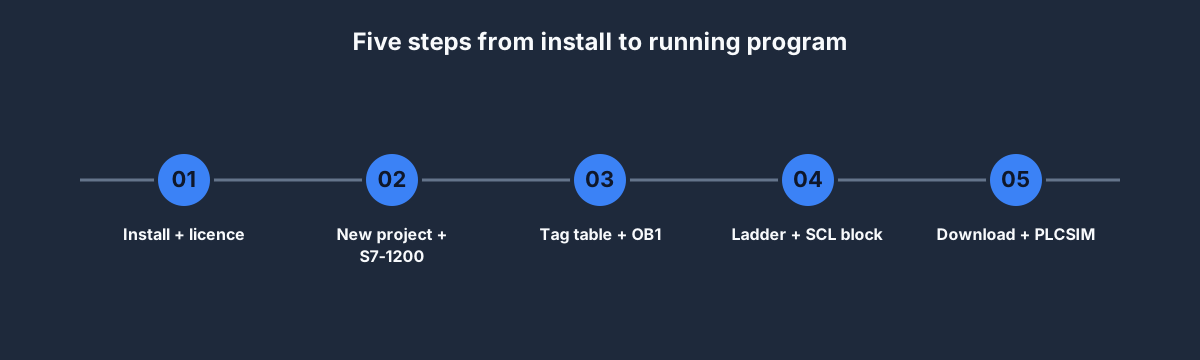
Step 1: New project + S7-1200 CPU
Open TIA Portal. Start View → Create New Project. Name it MotorStartStop_Tutorial. Click Create, then Project View.
In Project Tree on the left, double-click Add new device → Controllers → SIMATIC S7-1200 → CPU → CPU 1214C DC/DC/DC → choose a firmware version (V4.5 is fine for new work).
The device appears in Project Tree. Click its Device configuration to see the chassis.
Step 2: Configure I/O
The 1214C has 14 digital inputs and 10 digital outputs built-in. Click the CPU in Device View. Right pane → Properties → General → Digital Inputs. Note that inputs are pre-mapped to %I0.0 through %I1.5; outputs %Q0.0 through %Q1.1.
Keep defaults for now. We'll reference %I0.0 (Start) and %I0.1 (Stop) in symbolic form.
Step 3: Tag table + OB1
In Project Tree → PLC tags → Default tag table. Add three rows:
| Name | Data type | Address |
|---|---|---|
Start_PB | Bool | %I0.0 |
Stop_PB | Bool | %I0.1 |
Motor_Run | Bool | %Q0.0 |
Siemens' convention is to refer to these as "Start_PB" (with quotes) in code. The quotes tell TIA Portal "this is a symbolic tag, resolve it at compile time."
Under Program blocks, open Main [OB1]. Empty ladder rungs stare back at you.
Step 4: LAD rung + a tiny SCL block
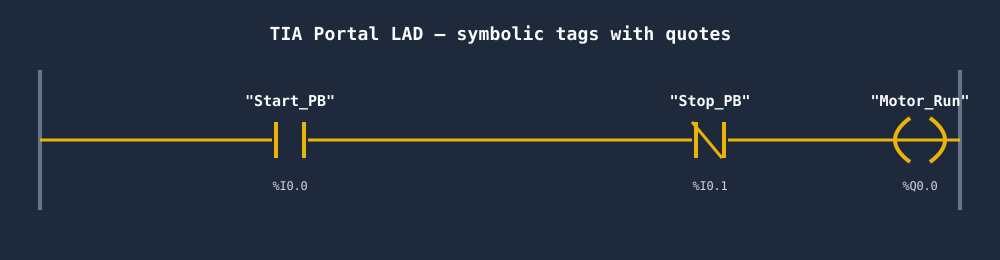
Drag a normally-open contact from the Instructions pane onto rung 1. Click the ??? placeholder, type "Start_PB" (Siemens auto-completes once you start typing). Add a normally-closed contact for "Stop_PB". End with a coil for "Motor_Run".
The seal-in branch: below "Start_PB", add a parallel branch with another "Motor_Run" contact (normally-open). Merge back into the main line before "Stop_PB".
Save. You've written Siemens LAD.
The tiny SCL block: right-click Program blocks → Add new block → Function block → name it RunHours_FB. Pick SCL as the language.
Paste:
IF "Motor_Run" AND #Delta THEN
    #Hours := #Hours + #Delta / 3600.0;
END_IF;
Add interface variables: Delta (Input, Real, "seconds since last scan"), Hours (InOut, Real, "accumulated runtime in hours").
This isn't production-grade code (you should scale time deterministically), but it demonstrates the SCL syntax and how to mix SCL with LAD in one project. You can call RunHours_FB from OB1 after the ladder rung by dropping the block and wiring its parameters.
Step 5: Download + PLCSIM
Click the CPU → Online → Start simulation. PLCSIM opens, configures automatically, and asks to download. Accept.
TIA Portal compiles, downloads, and switches to Online view. The ladder now shows green for TRUE logic. In PLCSIM's panel, toggle %I0.0 (Start) to 1: %Q0.0 (Motor_Run) goes high, the rung animates. Toggle %I0.1 (Stop) to 1: the motor stops.
Congratulations — you have written, compiled, and tested a Siemens program without any physical hardware.
What to do next
From this baseline, iterate:
- Add a TON timer — delay the motor by 2 seconds after Start is pressed. Our timers deep-dive has the waveform.
- Add a runtime counter — use your SCL
RunHours_FBand display via a Watch table. - Port to LAD+FBD — TIA Portal supports switching languages per block. Create a PID control block in FBD, drive a simulated analog output.
- Add an HMI screen — TIA Portal's WinCC is built into the same project. Add a new HMI device, bind a start/stop button to
"Motor_Run", and see the same tag you just wrote in ladder appear as a live lamp on a touchscreen. - Port to the simulator — open our Siemens dialect scenario, write the equivalent rung in the browser. Both execute the same IEC semantics.
Common pitfalls
- Opening the project on V17 after saving in V18 — TIA Portal's forward compatibility is good, backward is not. Tell collaborators which version before sharing projects.
- Forgetting to compile before download — TIA Portal will sometimes download stale object code if you downloaded before edits. Right-click the CPU → Compile → Hardware AND software → Download.
- Mixing absolute and symbolic addressing — use
"Start_PB"everywhere, not%I0.0. When you renumber inputs six months later, symbols save you. - Ignoring optimized block access — the new-style, don't worry about the performance hit. Turn it on.
FAQ
Is TIA Portal free?
No. The Basic edition starts at ~USD 750; Professional is several thousand. A 21-day trial is available for free from SIOS.
Can I learn TIA Portal without Siemens hardware?
Yes. PLCSIM ships with TIA Portal and simulates most S7-1200/1500 behavior. For browser-only practice (no TIA install), our Siemens dialect simulator covers the same IEC semantics.
What version of TIA Portal should I learn?
V18 or V19 as of 2026. Stick to Basic unless you need S7-1500 or SCL heavily — Basic doesn't support either. See our Siemens PLC training guide for the product matrix.
How long does TIA Portal take to learn?
A week to be functional. A month to be comfortable. Six months to be fluent across S7-1200, S7-1500, SCL, and PROFINET.
Is TIA Portal hard?
The UI is busier than Studio 5000 and has more strict project structure. Most newcomers find the first week overwhelming, the second week obvious.
Where to start
- Sign up free and open the Siemens PLC simulator learning path.
- Write the start-stop rung with symbolic tags. That's the core motion this tutorial teaches, minus the TIA Portal UI.
- Install the TIA Portal trial when you're ready for the real IDE.
- Run this tutorial once the trial is installed, then move on to the Siemens 10-week plan.